Update webpage
FISPlus hosts a local webpage for control settings, Wi-Fi credentials, configuration files, the welcome message, firmware updates, and other files.
You can interact with the examples below, to learn how to use the webpage. You can press their Reset button to undo your changes.
Connect to FISPlus
To access the webpage, follow the instructions of the menu.
Navigation
The bar at the top switches between five tabs on the same webpage.
| Tab | Purpose |
|---|---|
| Configuration | Assign actions to buttons and upload your configuration file |
| Wi-Fi | Set the network credentials to your Wi-Fi hotspot used for automatic updates |
| Welcome | Set the welcome message |
| Update | Install new software |
| Files | Install other files (live preset data and fault code decoding for UDS modules |
If the navigation bar does not fit on the screen, you can swipe left or right to see all options.
The currently selected tab is highlighted.
Open in browser
On Android, the Captive portal interface does not allow you to upload files to the webpage.
To upload files, first press the Open in browser button under the navigation bar. You may receive a warning about security, please confirm it. The webpage will open in your browser, and you can now upload files.
Configuration
This tab contains two sections:
- Control style: changing button settings
- Configuration file: installing a configuration file
Control style
The table shows the action performed when you press a button briefly, and when you hold it.
The short-press actions are currently fixed.
For example, if you can use a separate button for the Enter action, you can make it so holding Up/Down scrolls quickly instead of also performing the Enter action.
- for this, you would set the HOLD action for Up and Down to
Fast scroll, as they are set in the example above
Also, you can make it so holding your Enter button performs the Back action.
- for this, you would set the HOLD action for Enter to
Go back, as it is set in the example above
Check out the Operating the menus chapter for more details about buttons.
Press Save settings to store your changes. You will see a message on the webpage.
- you can see it by pressing Save settings in the example above
Configuration file
Check out the Configuration editor chapter for instructions on how to create your configuration file.
To install your file, press the section above the Upload button, choose the file from your device, and press Upload.
If the configuration is uploaded successfully, you will see a message on the webpage.
- you can see it by pressing Upload in the example above
After this, FISPlus will restart.
If the configuration was installed successfully, you will see a message when FISPlus starts.
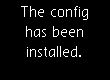
If you don't see any message, please try to install the configuration file again.
Wi-Fi
Here, you can configure the credentials for the Wi-Fi network/hotspot to which FISPlus will try to connect in the menu. Check out that chapter for more details.
Make sure you type the SSID and password carefully. Especially pay attention that you do not add a space at the end.
Press Save to store the credentials. You will see a message on the webpage.
- you can see it by pressing Save in the example above
Welcome message
Here, you can set the text to appear when FISPlus starts.
Message lines
The four fields set the message's lines, from top to bottom. Leave a field empty if you do not need that line.
Duration
The Duration field selects how long the logo will stay on screen. It is measured in milliseconds.
- for example, to make the message last 2 seconds, enter
2000, as in the example
Set
Press Set to install the message.
After pressing Set, you will see a preview of the message. You can adjust the parameters and set it again, until you like how it looks.
Choose when the message appears in Settings > Startup > Welcome.
Firmware update
Download the latest BAP software from Updates.
In the Update tab, choose the file you downloaded and press Update.
A progress bar will appear, showing the status of the update.
After the software is installed, you will see a message on the webpage.
- you can see it by pressing Update in the example above
After this, FISPlus will restart.
If the update was installed successfully, you will see a message when FISPlus starts.
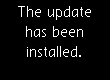
If you don't see any message, please try to install the update again.
Files
Here, you can upload additional resources. Choose a file, then press Upload.
| File | Purpose |
|---|---|
| CTT | Fault code descriptions, available on the Other files page |
| CDX | Preset live data decoding for a UDS module |
| CFD | Fault code decoding for a UDS module |
See the UDS module files chapter for more details regarding CDX and CFD files.
If the file is installed successfully, you will see a message on the webpage.
- you can see it by pressing Upload in the example above