Automatic
Before setting the Wi-Fi network details, the following error will appear:
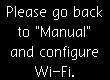
Go back and enter the menu and configure the Wi-Fi network as explained in the Update webpage chapter.
After configuring the Wi-Fi network, come back to the menu. The following message will appear:
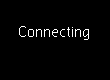
Please wait for FISPlus to connect. You can press Enter to stop the process if you changed your mind.
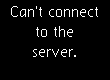
If FISPlus can't connect to the configured Wi-Fi network, the following error will appear:
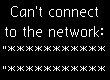
On the last two lines it shows you the SSID and password you have configured (scrolling), so you can check if they are correct. They are displayed inside quotation marks, so you can see the start and end, and make sure there are no accidental spaces.
Please ensure you have started the Wi-Fi hotspot on your phone, and that you entered the correct SSID and password on the page.
It may be necessary to change the settings of the Wi-Fi hotspot to force it to use 2.4GHz mode. It is not possible to connect to a 5GHz hotspot.
Also, the Security option should be WPA/WPA2.
On IOS devices, the Integrity mode option should toggle between 2.4GHz and 5GHz mode.
After successfully connecting to the Wi-Fi hotspot, the following menu will appear:
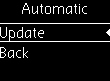
Updating
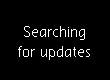
FISPlus will search for a new version:
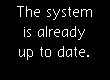
If the latest software version is already installed, the following message will appear:
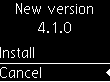
If a new software version is available, you will be asked to confirm installation:
If you choose to install the update, you will see a progress bar filling up:
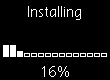
You can cancel the update by pressing Enter or by turning the hotspot off.
It is not recommended to turn the ignition off while installing an update.
After the update finishes installing, the system will restart automatically.
If the update installed successfully, the following message will appear:
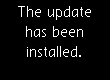
If the update failed to install, you will see the regular main menu, without any other messages.
Please try to install the update again.
The configuration file, settings, welcome logo and other files will not be deleted after the update.