Measuring blocks (UDS)
If you don't have a CDX file installed for this module, you will see this message:
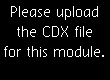
Check out the UDS module files chapter for details on how to obtain it, and the Update webpage (Other files) chapter for instructions on how to install it.
The main page lets you choose between a list of your "favorite" measurements, or the full list of measurements.
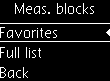
Initially, the menu will be empty, so we will first take a look at .
Full list
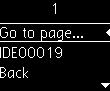
Since there are many measurements, there is a option on every page.
If you have a physical Back button (see Operating the menus (MFSW)), and you would like to hide the options, take a look at the setting.
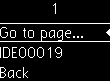
Choose the first option to jump directly to a specific page, instead of scrolling to it.
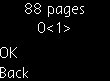
First, use Up/Down to select a digit of the page number. Then, press Enter to start editing it, and Up/Down to change the value:
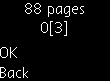
To accept the new digit, press Enter again. Then, use Up/Down to select :
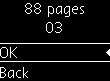
Press Enter to jump to the page you specified.
When not selected, most measurements will display a code that represents their name (usually known as "TI" or "Location" in diagnostic programs).
When you select one, it will change to show its name. Since their names are long, they will often not fit on the screen, but they will be scrolled. Select a measurement and wait a little bit to read the whole name.
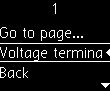
Pressing Enter leads you to the list of values contained in the measurement:
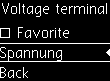
The title is the name of the measurement again, scrolling.
It is possible for a measurement to be defined in the CDX file, but for the module not to support it. In that case, you will instead see this message:
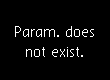
If the parameter exists, but it is currently not possible to read it, you will see this:
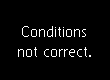
Most often, a measurement will contain a single value. However, it can contain multiple:
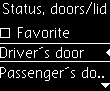
Once again, the name of a value might not fit on the screen, so it will be scrolled once you select it.
You can select the first option and press Enter to add this measurement to your list of favorites. Doing so will add it to the menu.
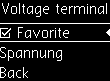
Selecting one of the measurement values and pressing Enter will show it, updating in real-time:
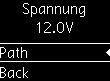
Path
This menu can be used to find the parameters you need for Configuration editor (UDS: From file), if you want to use a value from this measurement without typing the decoding parameters by hand.
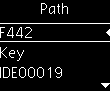
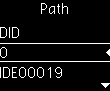
The most important parameters are the first two, namely the DID and the Key. Selecting them shows their value.
The rest of the options show the internal structure of this measurement, and are not important.
Pressing Enter on an option has no effect.
Favorites
This menu behaves identically to , with the exception that it only contains the measurements you have marked as "favorite".